DISTANCE IS NO LONGER THE OBSTACLE
Your BMW.
Our expertise.
Connected.
Bring our workshop to your car. ExpertConnect links your Windows PC and compatible BMW to the BMW EXPERT team for hands-on remote assistance.
Windows 10 / 11 · 64-bit v0.5.2 · 42 MiB
For owners and workshops, with a BMW EXPERT technician at the other end.
A PRACTICAL CONNECTION
Specialist support.
Where the car is.
A question about the car. A setup you need help with. A workshop that needs a second pair of expert eyes. Start with a direct connection to our team.
Help with the car, from a distance.
Give our technician a connection to your compatible vehicle for agreed diagnostic work. The app finds the vehicle and checks its identity before sharing begins.
Less setup. More time on the actual issue.Show us what you see.
Enable desktop assistance so our team can see and operate your Windows desktop during support. Explain the issue once, then work through it together. You can pause desktop access from the app.
Useful even when the car is not connected.Bring iDrive into the conversation.
For supported, prepared head units, our team can open a separate connection and, where available, view the iDrive screen. A clearer picture helps us understand what is happening in the car.
Compatibility is checked for your session.INSIDE EXPERTCONNECT
A clear view.
From start to finish.
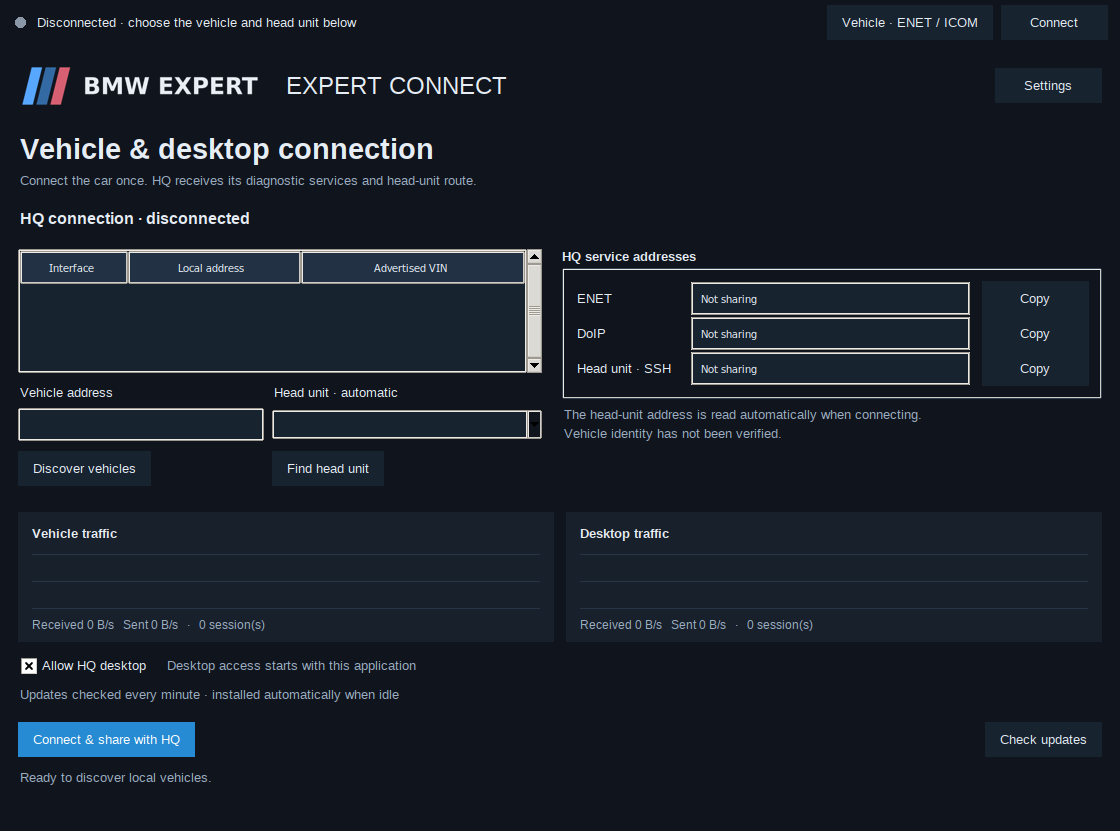
Explore the actual Windows interface. Choose a detail to find it on the screen, or open the full screenshot.
Automatic discovery brings compatible vehicles into view. The live VIN is checked before vehicle sharing; if several cars are found, you choose the one for this session.
Vehicle and head-unit services have separate status fields. You and our technician can see which connections are ready, instead of guessing from one general indicator.
Separate graphs show actual vehicle and desktop traffic. Keep an eye on activity while our technician works, with both views in the same window.
Pause desktop access with its own control. Vehicle Disconnect lets active work finish; verified updates wait until the app is idle.
A SIMPLE FIRST HELLO
New to BMW EXPERT?
You are in the right place.
If your vehicle is not yet registered, ExpertConnect guides you through the next step inside the app.
- Start with the vehicle the app has identified.
- Complete the account and vehicle details requested.
- The app rechecks approval before vehicle sharing begins.
An existing eligible vehicle can continue after the identity check. Registration alone does not book a support session.
Talk to our team ↗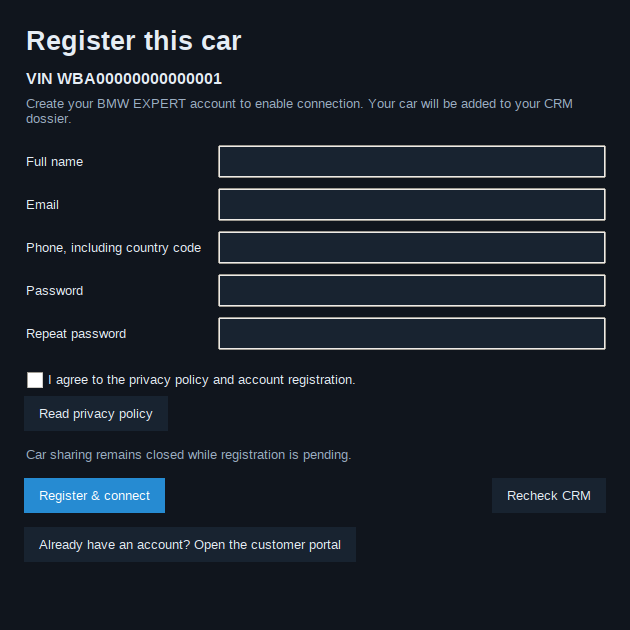
FROM YOUR DRIVEWAY OR YOUR WORKSHOP
Three steps. One connection.
- 01
Plan it with us.
Tell us the vehicle and the help you need. We confirm compatibility, the work and the appointment before you connect.
- 02
Plug in. Open the app.
Use a Windows PC with internet and the agreed vehicle interface, usually ENET. Follow our preparation instructions, then let ExpertConnect find your car.
- 03
Work with our specialist.
Keep the app open and stay available while our technician assists. Enable desktop support if needed and coordinate the end of the session with us.
BEFORE WE CONNECT
A little preparation.
A smoother session.
- Windows10 / 11 · 64-bit
- ConnectionReliable internet
- Vehicle interfaceAgreed with our team
- Vehicle preparationFollow the technician’s guidance
Keep the PC powered and follow our guidance on ignition and vehicle power for the planned work.
Does ExpertConnect diagnose or program the car on its own?
No. It provides the connection. A BMW EXPERT technician carries out the agreed work with the appropriate tools. Available operations depend on the vehicle, interface and session.
Can I get help with just my Windows PC?
Yes. Desktop assistance works independently of the vehicle connection. With desktop access enabled, our team can view and control your Windows desktop. The app provides a separate control to pause it.
Will it work with every BMW or head unit?
Compatibility depends on the vehicle and equipment. Our team confirms the connection method and whether head-unit support is available. ExpertConnect does not unlock a head unit or enable services that are not already prepared.
What happens when an update is available?
The app checks for updates automatically and verifies the downloaded package. Installation waits for active vehicle and desktop sessions to finish and the app to become idle.
What should I know about the Windows download?
The current 0.5.2 application is a single download for 64-bit Windows 10 and 11. The executable is not digitally signed, so Windows may display an unknown-publisher message. Use the official download and contact us if you need help.
BMW EXPERT / EXPERTCONNECT WINDOWS
Closer than you think.
Your car. Your location. Our team, ready to help. Download ExpertConnect and arrange your remote session with BMW EXPERT.
v0.5.2 · Windows 10 / 11 · 64-bit · 42 MiB